Shopify Themes
ThemeSync tracks every theme on a Shopify store — not just the one you're actively building. Development themes run a full cloud dev server; production themes sync the live store to git automatically.
Overview
Development Theme
Runs the Shopify CLI in the cloud. Full live-reload dev server, terminal, and preview URLs. Best for active work.
Production Theme
Tracks a live or draft store theme without a dev server. Shopify → git syncs automatically on a schedule.
Development Themes
A development theme runs shopify theme dev in the cloud. The server stays up across browser refreshes and restarts — your work is always available.
What you get
- Preview URL — your dev theme on the live store, shareable with clients
- Editor URL — Shopify's theme editor, pre-loaded with the dev theme
- Live Console — real-time CLI output in the Console Dock
- Git sync — auto-pulls your repo on a configurable interval
- Git Changes modal — inline diff viewer, commit, push, and pull without leaving the browser
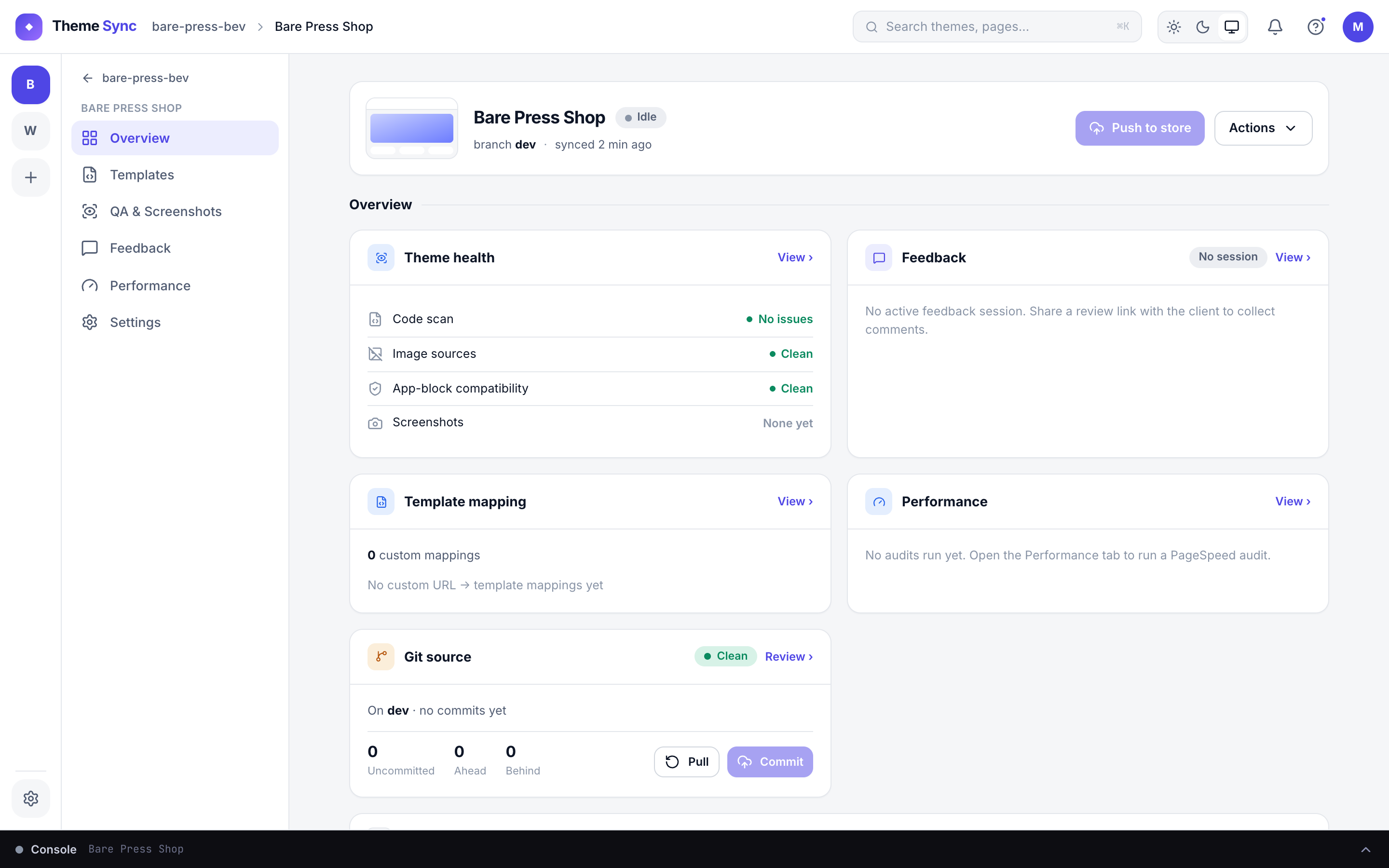
Overview cards
The Overview tab shows a grid of live-status cards:
- Git Source — branch, last commit, uncommitted file count, inline pull/push
- Theme Health — warnings from the code scanner
- Feedback Summary — open sessions and unresolved comment counts
- Templates — mapped templates with last-modified times
- PageSpeed — latest Lighthouse score
- Activity — recent audit log events
Production Tracking
Production themes track a live or draft Shopify theme in git without running a dev server. Ideal for maintaining a history of a theme that wasn't built in ThemeSync, or for capturing customiser edits clients make after launch.
How it works
- Import a theme from your store (see Import a Theme)
- ThemeSync runs
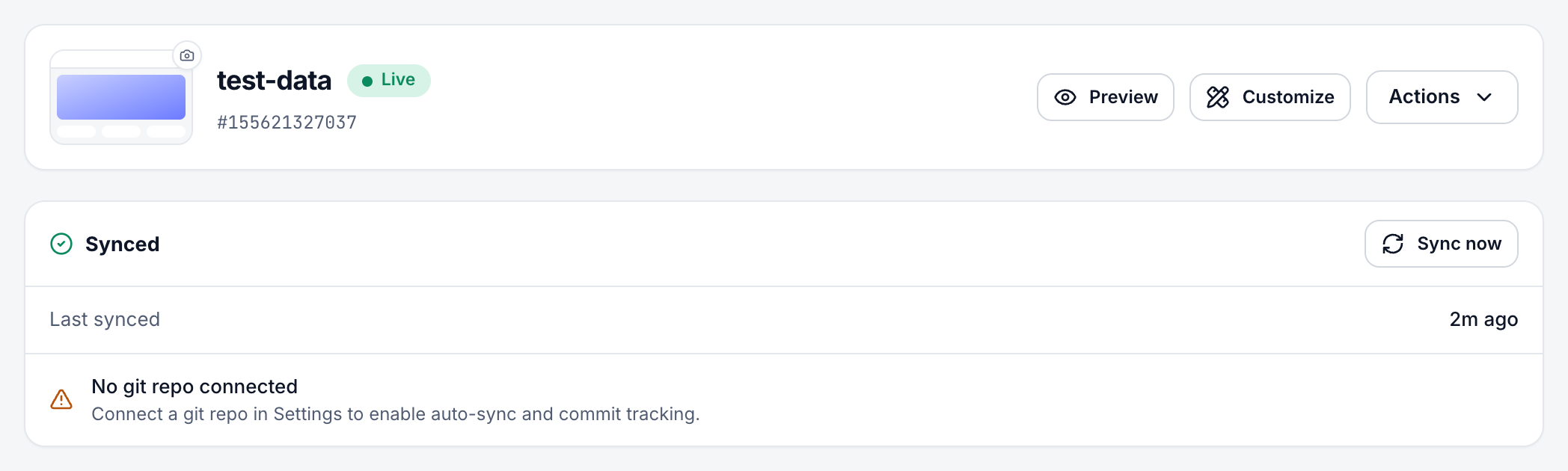
shopify theme pullon a schedule and commits changes to your git repo - The sync panel shows state, last sync time, and any commits ready to deploy
- To push code changes back, click Deploy to Store
Sync states
| State | Meaning |
|---|---|
| Healthy | Sync active, last sync within expected interval |
| Syncing | A pull or deploy is currently in progress |
| Stale | Overdue or never synced — check credentials |
| Error | Last cycle failed — error shown in the panel |
Import a Theme
Import an existing theme from a connected Shopify store instead of starting from scratch.
Open Add Theme → Import from store
Click Add Theme on the store home, then select Import from store.
Select a theme
ThemeSync fetches all themes from Shopify — live, draft, dev. Each shows its current role (Live / Draft / Dev) badge. Pick the one to track.
Connect a git repo (optional)
Enter a git URL and access token. ThemeSync pushes the initial pull snapshot to the repo and syncs from there.
Import runs
ThemeSync runs shopify theme pull --force. Live/draft themes become production sessions; dev themes become development sessions.
Store Credentials
Credentials are configured once per store and shared across all themes. Access them via Store Settings (gear icon on the store home).
| Credential | What it enables |
|---|---|
| Admin API token | Fetch products, collections, pages, and theme lists. Required for template mapping autocomplete and Import from Store. |
| Theme Access password | Unattended dev server auth — no browser OAuth prompts. See below. |
sitemap.xml if no API token is set. Pages show a "via sitemap" badge in the Templates tab.Theme Access Password
A Theme Access password lets the dev server run completely unattended — no browser OAuth, no re-auth after restarts.
- Install the free Theme Access app from the Shopify App Store on the client's store
- Create a new password — give it a descriptive name like "ThemeSync"
- Save it in Store Settings under "Theme Access password"
- Never expires — session stays active indefinitely
- Survives server restarts — reconnects automatically
- Required for Import from Store and production sync
- Best for team environments — no individual auth tokens to manage
Dev Server & Preview
Once a development theme is running, the Overview tab shows three key URLs:
| URL | What it's for |
|---|---|
| Preview URL | Your dev theme on the live store. Share with clients. |
| Editor URL | Shopify's theme customiser, pre-loaded with the dev theme. |
| Code Editor | Shopify's online code editor for quick fixes. |
Live Console
The Console Dock at the bottom of the app streams real-time Shopify CLI output for the active dev theme. It persists across tab navigation — switch to QA and back, the console keeps running.
- Watch file-change notifications and live-reload events
- See errors and warnings as they happen
- Send input — answer CLI prompts, select themes, run commands
- Recent output is buffered — reconnect any time and see history
Git Changes
The Git Changes modal lets you review, commit, and push theme changes directly in the browser — no local terminal required.
Screenshot needed: Git Changes modal — file list with M/A/D badges on the left, unified diff view on the right, commit message input at the bottom.
- View diff — file list with M / A / D status; click any file to see a unified diff
- Commit & Push — enter a commit message and push to the remote branch
- Pull — pull latest from the remote branch into the workdir
- Discard — revert all uncommitted changes (confirmation required)
Open via the Git Source card on the Overview tab, or the uncommitted-files badge in the theme header.
Push to Store
Ready to publish? Use Push to Store from the theme action menu (⋮ top-right).
- Target: push as a new draft (unpublished), or overwrite an existing theme
- ThemeSync runs
shopify theme pushand streams output to the Console Dock - Once pushed, ThemeSync automatically creates a production session tracking the new theme