Template Mapping
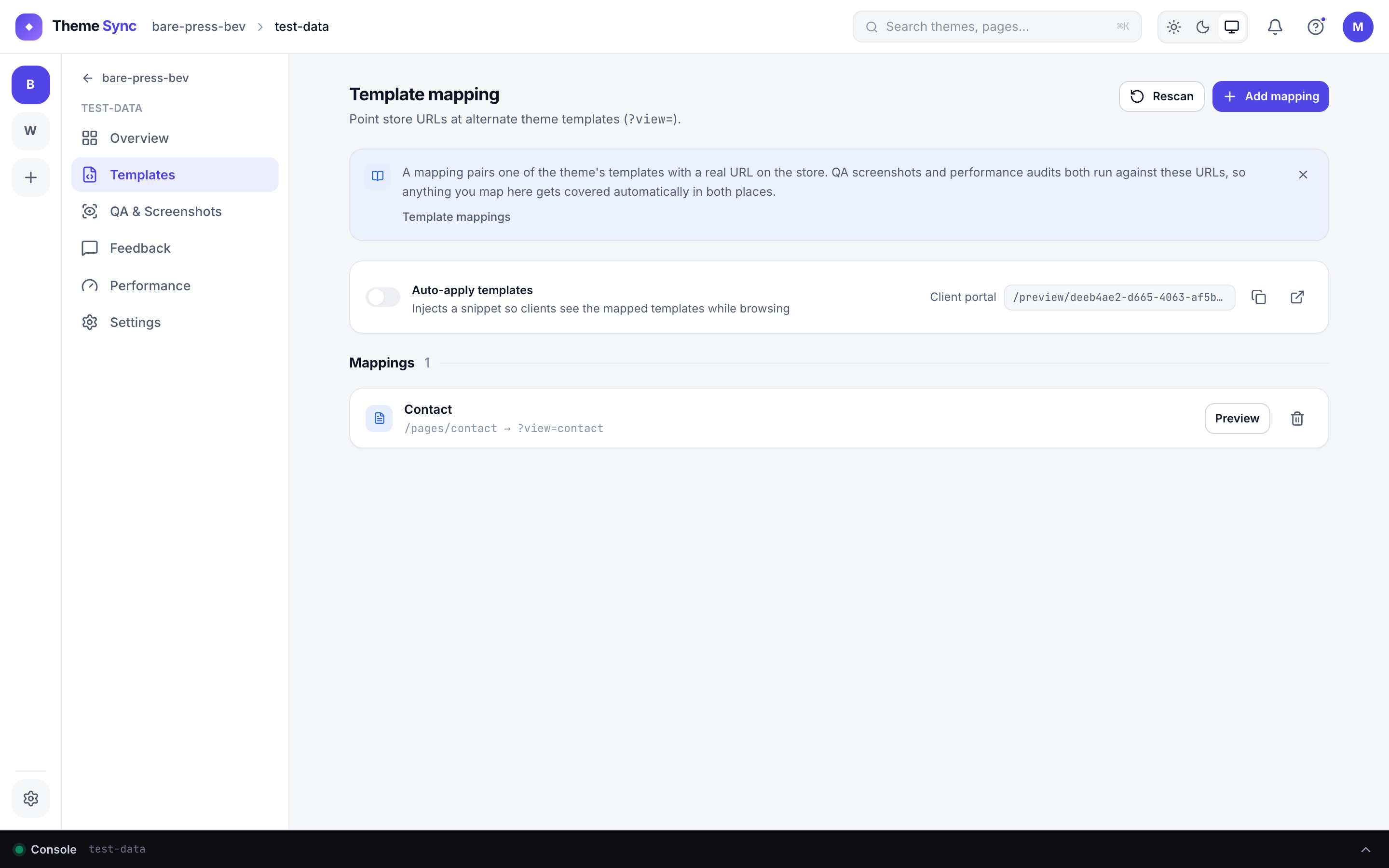
Template mapping connects your theme's template files to real store pages — telling ThemeSync which URLs to screenshot during QA and which template to serve when clients browse the preview.
Why template mapping matters
- QA screenshots need real URLs — a template file name alone isn't enough
- Clients should be able to browse the preview like a real store (homepage, product pages, collections)
- Different pages use different templates — mapping ensures the correct template renders for each URL
Shopify Templates
ThemeSync auto-detects Liquid template files in your theme and lists them in the Templates tab:
| Template file | Page type |
|---|---|
index.json | Homepage |
product.json | Product page |
collection.json | Collection page |
page.*.json | Custom page templates |
blog.json / article.json | Blog & article pages |
cart.json, search.json, etc. | Other standard templates |
For each template, pick a real store URL from the dropdown. ThemeSync fetches your products, collections, pages, and blogs from the Admin API so you can select them by name.
sitemap.xml to discover pages. URLs found this way show a "via sitemap" badge. The dropdown still works — you just won't see all resource types.WooCommerce Templates
ThemeSync scans your WordPress theme directory for PHP template files and lists them in the Templates tab:
front-page.php— Homepagesingle.php/single-*.php— Post or product detailarchive.php/archive-*.php— Archive/category pagespage-*.php— Custom page templates
ThemeSync fetches your WordPress pages (via the WP REST API) so you can assign URLs with autocomplete.
Custom URLs
Not every page comes from the CMS. Add custom URLs for anything you want in QA:
- Landing pages built with apps (e.g. PageFly, Shogun)
- Cart and checkout pages
- Search results (
/search?q=shoes) - The 404 page
- Password / coming-soon pages
Custom URLs are saved per theme and persist across QA runs.
Preview Snippet (Shopify)
The preview snippet enables template-aware routing — when a client clicks /products/shirt on the preview, they see the product.json template from your dev theme instead of the live theme's version.
- Inject — one click from the Templates tab; adds a small Liquid snippet to your
theme.liquidlayout - Remove — one click to cleanly remove it