Replacing the QA Spreadsheet: Screenshots and Sign-off per Page and Device
Part of The Theme Ops Stack, Consolidated. Most agencies track theme QA in a Google Sheet or Airtable base. It works until the theme changes after the rows were filled in, which is every project.
About this series
The Theme Ops Stack, Consolidated looks at the tools agencies stitch together to build, review and ship themes, one category per article. Each one covers what ThemeSync replaces, what the existing tool is better at, and when you should keep it.
This article covers the QA spreadsheet. The others in the series:
What the typical QA sheet looks like
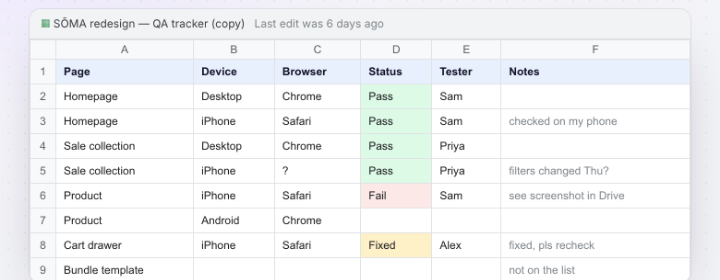
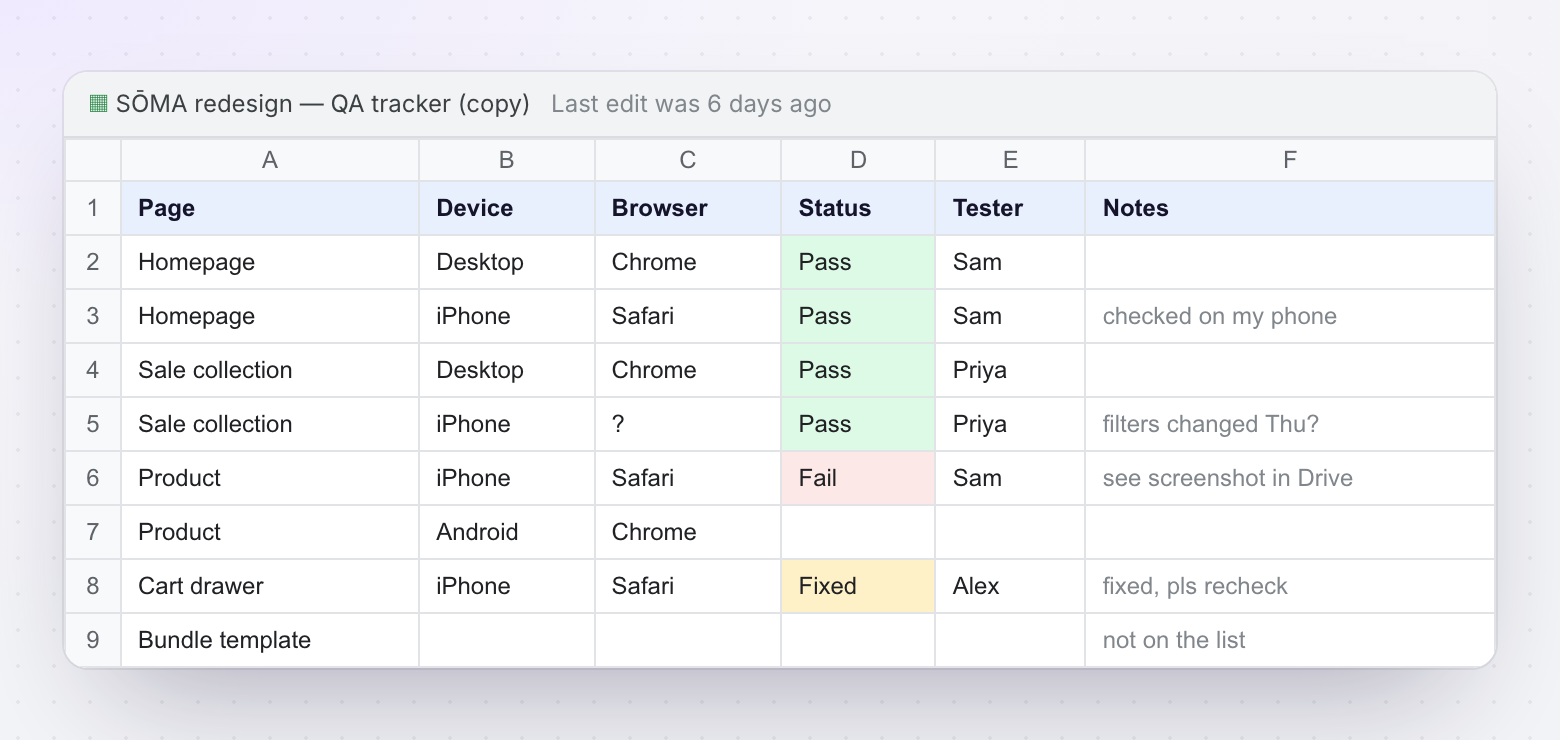
Almost every agency has a version of this. A Google Sheet or an Airtable base, copied from the last project, with columns like:
- Page: homepage, a product, a collection, cart, a blog post, a few landing pages.
- Device: Desktop, iPhone, Android, sometimes iPad.
- Browser: Chrome, Safari, Firefox, often merged with device.
- Status: a dropdown of Not started, Pass, Fail, Fixed.
- Notes and a Screenshot column with a pasted image or a link.
- Tester and sometimes Client approved.
Ten pages across four devices is 40 rows. Add three browsers on desktop and it's closer to 60. Somebody fills them in over a day or two, usually on their own phone and whichever laptop browser they have open.
What spreadsheets are genuinely better at
It's worth being honest here, because the sheet survives for good reasons.
- Any shape you want. You can add a column for "copy approved", "SEO title checked" or "uses metafield" in five seconds. No tool's data model fits every project.
- Non-page checks. Checkout settings, notification emails, shipping rates, redirects, DNS, app configuration and the launch-day runbook aren't pages you can screenshot. A list is the right format for them.
- Everyone already knows it. Clients, PMs and freelancers can open a Google Sheet with zero onboarding.
- Formulas, filters and views. Airtable in particular gives you grouped views, forms and automations that a QA tool won't match.
- Cost and lock-in. It's free or already paid for, and you can export it anywhere.
If your projects are small, have one tester and rarely change after QA, a sheet may be all you need.
Where it breaks: the sheet drifts from the theme
The core problem is that a spreadsheet row is a claim about the theme at one moment. The theme keeps changing after that moment, and the row doesn't know.
- Stale passes. A row marked Pass on Tuesday is still Pass after Thursday's change to
sections/main-collection.liquid. Nobody re-tests rows they don't know were affected. Our guide to finding every page a template touches explains why that's hard to know by hand. - Vague device columns. "iPhone" could mean a 390px iPhone 14 in Safari, an older phone, or Chrome's device emulator. Those render differently, especially for mobile Safari bugs.
- Screenshots live somewhere else. Pasted images bloat the sheet, Drive links break, and nobody can tell which build a screenshot came from.
- Approval is soft. "Client approved: Yes" typed by the PM after a call is weak evidence when a dispute comes up later. See preventing scope creep for why that record matters.
- Copy-paste between projects. The template sheet carries rows for pages the new store doesn't have and misses alternate templates it does.
| Desktop | Iphone | Android | Ipad | |
|---|---|---|---|---|
| Homepage | Pass | Pass | Pass | Not run |
| Sale collection (changed) | Pass? | Pass? | Pass? | Not run |
| Other collections (same template) | Pass? | Pass? | Not run | Not run |
| Product page | Pass | Fail | Pass | Not run |
| Cart drawer | Pass | Fixed | Not run | Not run |
What to replace it with
The page-by-device grid is the part that should move out of the sheet. Whatever tool you use for it, look for these properties:
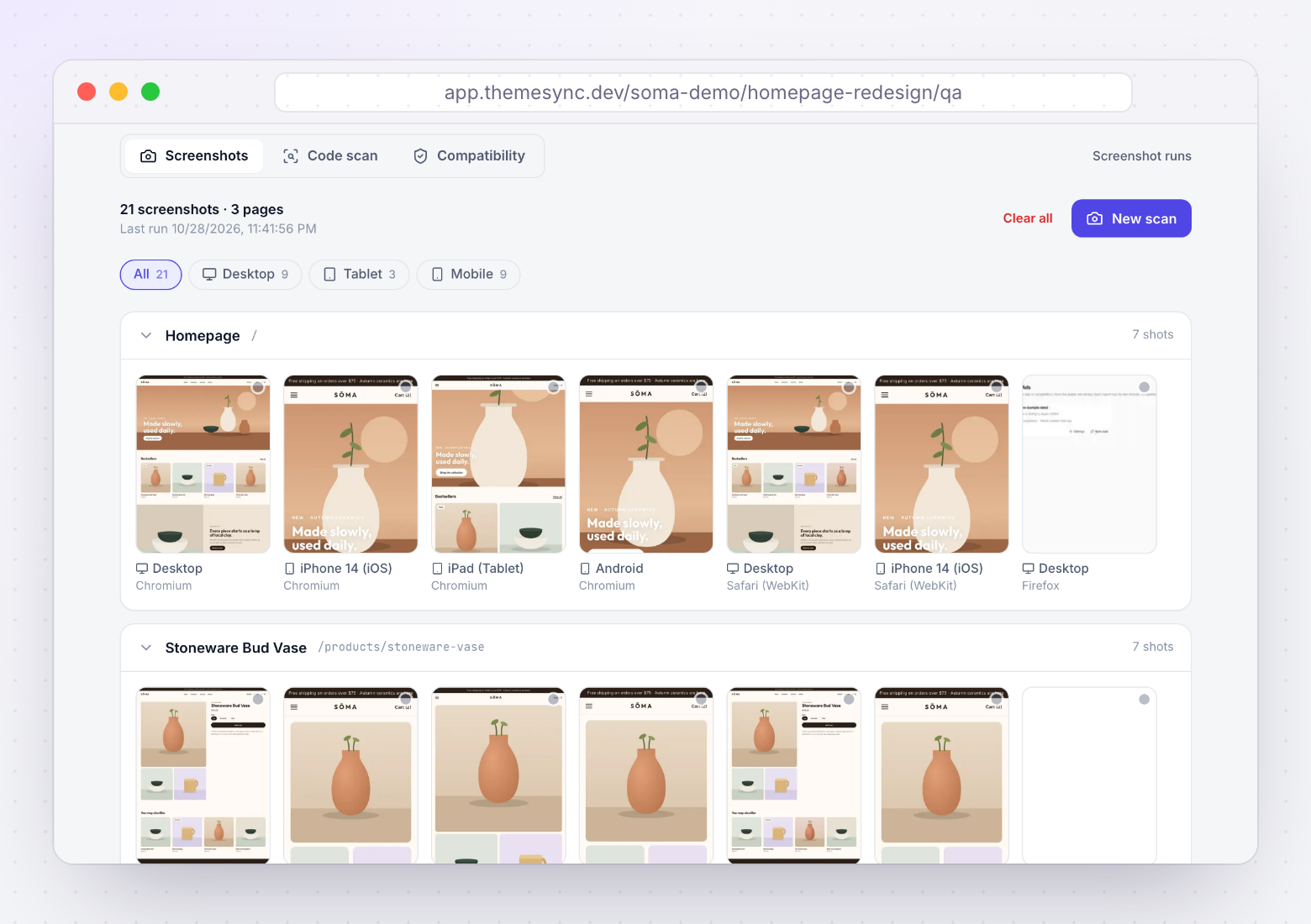
- The screenshot is the record. Status is attached to a captured image, not typed next to it.
- Exact browser and viewport. "iPhone 14, 390×844, WebKit" rather than "iPhone".
- Re-capture resets status. When a page is captured again after a change, its old approval stops counting.
- Rejection needs a reason. A reject without a note just sends someone back to Slack to ask why.
- Names and times are stored. Who approved which page on which device, and when.
- Pick pagessetup
Pages, products, collections, blog posts, mapped alternate templates and any custom URLs the client cares about.
- Captureminutes
Full-page screenshots per browser and device, with cookie banners and popups dismissed and lazy content loaded.
- Reviewper device
Approve or reject each page on each device, with a written reason for every reject so the fix is clear.
- Fix and re-scanchanged pages
Re-captured pages lose their old approval, so nothing passes on stale evidence from an earlier build.
- Sign offrecorded
Designer, QA, PM and client decisions are recorded per page and viewport with name and time.
Keep a short list (it can stay in the sheet) for the non-page checks: checkout, emails, apps, redirects and the launch runbook. That's the honest split. The handoff checklist is a good starting point for that list.
Splitting QA between your team and the client
A shared sheet tends to blur who is responsible for what. Everyone can edit every cell, so a client can mark a row Pass that QA hasn't looked at, or a developer can flip a Fail to Fixed without anyone checking. Once the grid moves out of the sheet, it helps to decide the order of reviews up front:
- Designer checks layout, spacing and typography against the design on each viewport. Rejections here are usually visual: a heading wraps badly at 390px, an image crops the product.
- QA checks behaviour: filters, variant pickers, cart drawer, forms, app blocks, and the browsers your designer didn't open. Mobile Safari gets its own pass.
- PM checks scope: is everything in the brief on the page, and is anything there that wasn't agreed?
- Client approves last, on their own device, once the internal roles have cleared their pages.
The client step matters most for disputes later. A client approval recorded against a specific page and device, at a specific time, is much clearer than "approved on the call". It also changes what the client looks at. Instead of a list of 60 rows, they see the pages themselves and approve what they can see.
Keep the order light for small projects. A freelancer working alone may only need their own QA pass and a client approval. The point is that each approval belongs to a named person and a captured page, not to whoever last edited the cell.
Moving an existing sheet over
You don't need to convert every row. A practical approach for the next project:
- Turn page rows into a page list. Each unique URL in the sheet becomes a page in the scan. Add one example of every alternate template, for example
/products/linen-shirt?view=lookbook. - Turn device columns into exact viewports. Desktop 1280×800, iPhone 14 390×844, Android 412×915, iPad 768×1024. Add Wide 1920×1080 if the design has a max-width layout.
- Drop the screenshot and status columns. Those now come from the capture.
- Keep the notes that aren't about a page in a short checklist tab.
Run the first project in parallel if the team is nervous: keep the old sheet open, but stop updating its status columns. After a round or two, the sheet is usually only being used for the non-page list, which is where it belongs.
Agree with the client up front that page approvals happen on the captured screenshots or the preview, not in email. It saves the "I approved it on my phone" conversation later.
How ThemeSync replaces the QA grid
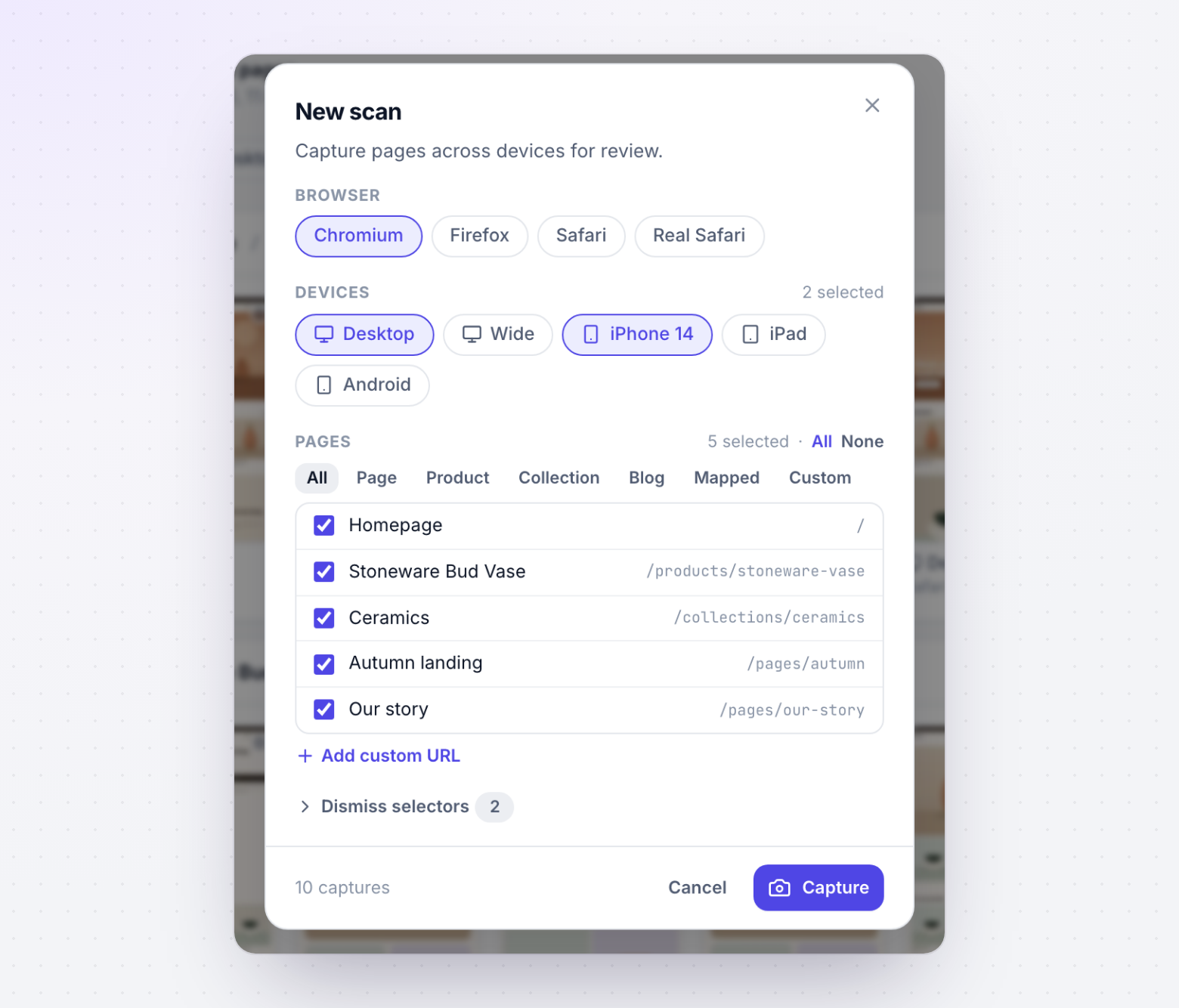
In ThemeSync, the grid lives in QA & Screenshots. A new scan starts from the New scan dialog: pick browsers (Chromium, Firefox, Safari via WebKit, and Real Safari on a real iPhone), devices, and pages grouped by Page, Product, Collection, Blog and Mapped templates, plus custom URLs. The footer shows how many captures the scan will make.
- Captures run against the Cloud Preview of a development theme, so QA never needs a draft theme on the client's store.
- Full-page screenshots scroll lazy-loaded content into view and dismiss cookie banners and popups using the selectors you set.
- Review per page and device. Approve or reject, with a reason on rejections. A new scan clears approvals for the pages it re-captures.
- Sign-off with roles (Agency plan): Designer, QA and PM approve, reject or revoke per page and viewport, and clients approve through the feedback overlay. Each decision is stored with name and time. The sign-off guide covers how to structure it.
- Template Mapping adds alternate-template URLs to the page list, so
?view=templates get captured too.
What ThemeSync doesn't do: it has no custom columns, formulas or automations. Keep your sheet or Airtable base for project tasks and non-page checks.
Takeaways
- A QA spreadsheet records a claim at one point in time; the theme keeps changing after it.
- Sheets are better for flexible, non-page checks: checkout, emails, apps, redirects and launch tasks.
- Move the page-by-device grid to captured screenshots with exact browsers and viewports.
- Re-capturing a page should clear its approval, and every reject should carry a reason.
- Record who approved what, on which device, and when.
Retire the page-by-device grid
ThemeSync captures every page across browsers and devices from a live dev preview and records sign-off per page and viewport.
Try ThemeSync Free →