Auditing Shopify Theme Performance Without Guessing
The client sends a screenshot of a red performance score and asks why you built a slow site. Most of that number is not your theme — but you need evidence to say so.
The conversation this is really about
Performance work on client stores rarely starts with a plan. It starts with a screenshot: a red score, forwarded with "why is our site slow?"
Two bad responses. Getting defensive — "that's the apps, not us" — sounds like an excuse even when it's true. Accepting it wholesale means committing to fix things you don't control, for free, forever.
The professional response is measurement that separates the two. When you can show that a chat widget and a reviews app account for more blocking time than the entire theme, the conversation stops being about blame and becomes a decision the merchant can make.
What to measure, and on what
Three decisions matter more than which tool you use.
Measure mobile first
Most Shopify traffic is mobile, mobile scores are throttled to a slow connection and CPU, and it's the number clients see. Desktop is a secondary reading.
Measure the templates that carry revenue
Homepage, top product page, main collection, cart. Auditing a low-traffic page tells you nothing useful.
Understand lab vs field
| Lab data | Field data | |
|---|---|---|
| What it is | One simulated load under fixed conditions | Real visits from real devices over time |
| Good for | Comparing before and after a change | Knowing what customers actually experience |
| Weakness | One sample, variance between runs | Lags changes by weeks; needs traffic |
| Use it to | Prove your optimisation worked | Decide whether there's a problem at all |
The metrics worth explaining
- LCP — when the biggest thing above the fold appears. On Shopify this is almost always the hero image or product image, which makes it very much a theme concern.
- CLS — how much the layout jumps. Usually images without reserved space, late-loading fonts, or app banners inserting themselves. Highly fixable.
- INP — how quickly the page responds to a tap. Dominated by JavaScript, which on most stores means apps.
Separating theme problems from app problems
This is the analysis that earns its fee, because it converts an accusation into a work list with owners.
| Theme (you) | Apps | Platform | |
|---|---|---|---|
| Oversized hero image | Yours | — | — |
| Render-blocking CSS | Yours | — | — |
| Layout shift from images | Yours | Sometimes | — |
| Six font weights | Yours | — | — |
| Chat widget JS | — | Theirs | — |
| Reviews app blocking time | — | Theirs | — |
| Checkout & platform scripts | — | — | Fixed |
How to attribute it
- Audit the live page. That's the number the client sees, apps and all.
- Audit the theme on a development theme with apps off. Same templates, without third-party scripts.
- The difference is app cost. Not an estimate — two measurements on the same code.
- Attribute per app from the network waterfall, by domain. Name them individually.
That gives you a sentence a merchant can act on: "The theme scores 78 on mobile. The live page scores 41. The 37-point gap is four apps, and this one is 19 of it."
The fixes that actually move the number
Ordered by impact per hour of work on a typical Shopify theme.
1. Serve images properly
Usually the single biggest theme-side win, because the LCP element is nearly always an image. Request the size you'll display, let Shopify handle format negotiation, and be honest about which images are genuinely above the fold.
<img
  src="{{ product.featured_image | image_url: width: 800 }}"
  srcset="{{ product.featured_image | image_url: width: 400 }} 400w,
          {{ product.featured_image | image_url: width: 800 }} 800w,
          {{ product.featured_image | image_url: width: 1200 }} 1200w"
  sizes="(min-width: 750px) 50vw, 100vw"
  width="{{ product.featured_image.width }}"
  height="{{ product.featured_image.height }}"
  loading="lazy"
  alt="{{ product.featured_image.alt | escape }}">
width and height are what stop layout shift — the browser reserves the space before the image arrives. And the hero image should be loading="eager" with fetchpriority="high": lazy-loading your LCP element makes the score worse, which is a common accident.
2. Stop blocking the render
Ship critical CSS for above-the-fold content and defer the rest. Load JavaScript with defer unless it genuinely must run first — for theme JS, it almost never must.
3. Cut the fonts
Each weight and style is a separate file. Four weights across two families is eight requests before any text renders. Two weights of one family covers most designs, and font-display: swap means text appears immediately.
4. Reserve space for everything that loads late
Images, embeds, app blocks, announcement bars. Anything inserted after first paint shifts the page. Reserve the space in CSS.
5. Then go after the apps
Not your code, but often the biggest number. Present it as options: uninstall what's unused, ask vendors whether a script can defer, or move a widget below the fold.
| Fix | Typical effort | Typical impact |
|---|---|---|
| Correct image sizing + dimensions | Half a day | High — LCP and CLS together |
| Eager-load the hero, lazy-load the rest | An hour | High on LCP |
| Defer non-critical JS | A few hours | Medium to high |
| Reduce font weights | An hour, plus design sign-off | Medium |
| Reserve space for late content | A few hours | High on CLS |
| Remove unused apps | A conversation | Often the largest of all |
How ThemeSync handles performance
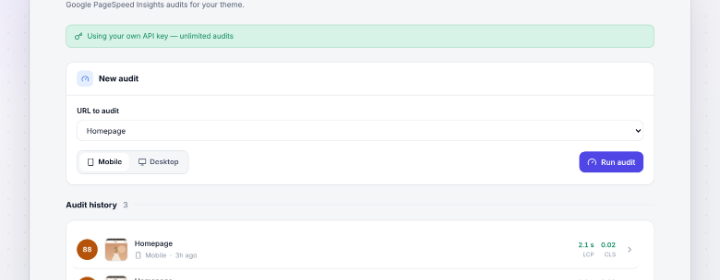
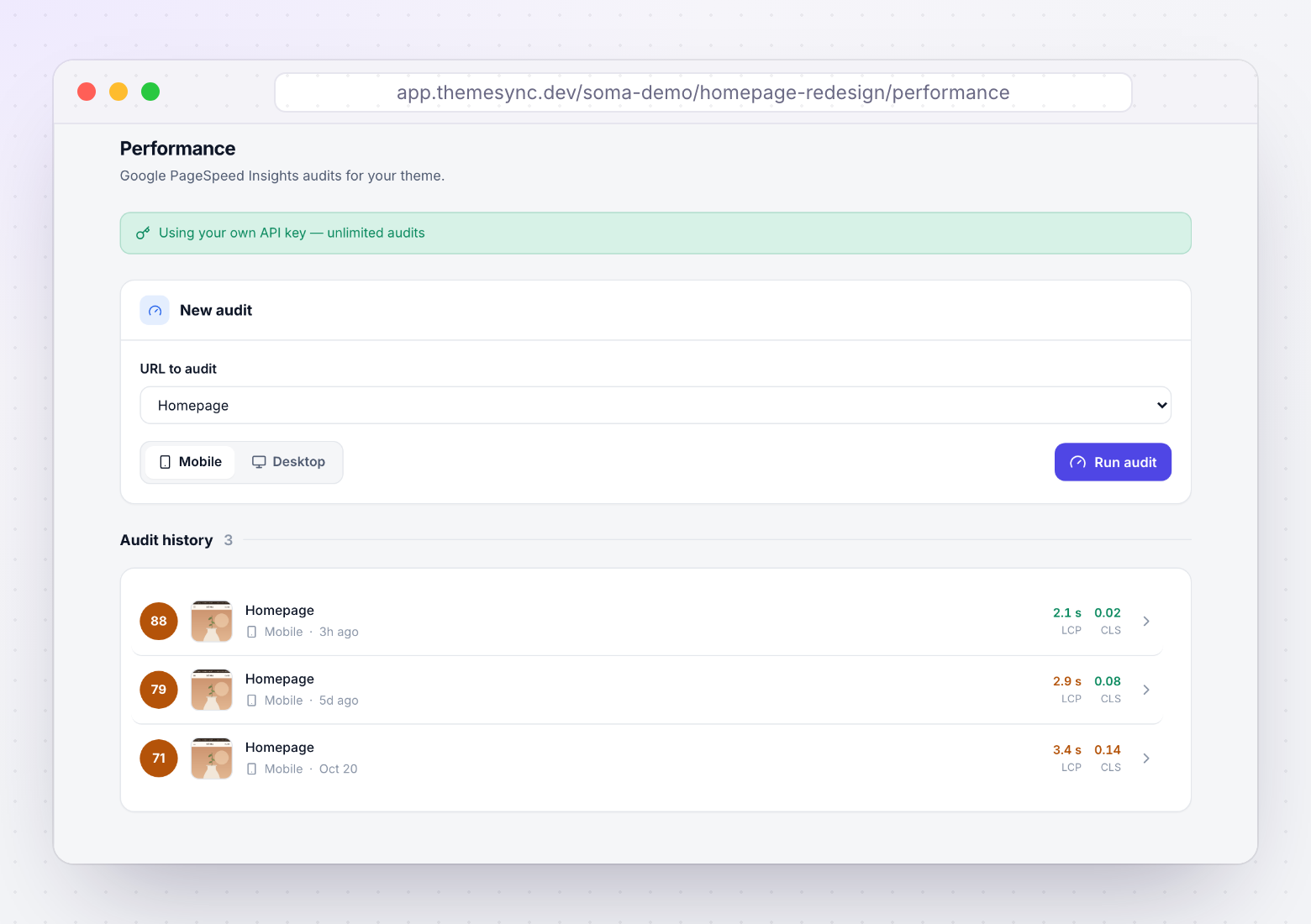
- Audits run against your mapped templates. Scores are collected for the pages you've identified as mattering, not one arbitrary URL.
- Mobile and desktop, side by side. Both strategies are available so you can report the mobile number clients see and the desktop number for context.
- More than performance. Runs return accessibility, best-practices and SEO alongside the performance score, which often surfaces issues nobody was looking for.
- History is kept per theme. Results are stored against the theme, so you have a before-and-after rather than a screenshot from three weeks ago.
- You can compare theme-only against live. Because a development theme runs on the same store, auditing both is how you quantify app cost with two real measurements.
- Bring your own API key. A shared key covers occasional checks with a small daily allowance; adding your own removes the cap for regular auditing across a portfolio.
Takeaways
- Measure mobile, on the revenue templates, and report a median of three runs — not a single number.
- Lab data proves a change worked. Field data tells you whether there's a problem worth fixing.
- Separate theme cost from app cost by auditing the theme with apps off and the live page with them on. The gap is evidence.
- Name individual apps and their cost. It turns blame into a decision the merchant can make.
- Images first: correct sizing, explicit dimensions, eager hero with
fetchpriority, lazy everything else. - Never lazy-load the LCP image. It's a common accident that makes the score worse.
- Record a performance baseline at handoff. It's what protects you six months later.
Performance numbers you can defend
ThemeSync audits your mapped templates on mobile and desktop, keeps history per theme, and lets you compare theme-only against live so app cost is measured rather than argued.
Try ThemeSync Free →