Getting Started
ThemeSync is a theme ops platform for Shopify and WooCommerce agencies. Learn how the app is organised, what the core concepts mean, and how everything fits together.
What is ThemeSync?
ThemeSync replaces the scattered tools agencies use to ship themes — staging servers, BrowserStack, Loom videos, email chains, and spreadsheets — with a single platform that connects to your client's store directly.
Cloud Preview
Run your dev theme in the cloud. Share a preview URL — clients see the design on their live store with no code access.
Visual QA
Automated cross-browser screenshots across 5 devices and 4 browser engines including real Safari.
Client Feedback
Clients drop pin comments on the live preview. No login needed. Approvals tracked per page and role.
Team Workflow
Designer, QA, PM, and Client roles each sign off independently. Nothing ships without full approval.
Core Concepts
Stores
A store is a connected Shopify store or WooCommerce site — usually one client. Store-level credentials (Admin API token, Theme Access password) are saved once and shared across all themes on that store.
Themes
A theme is one version of work connected to a store. A store can have many themes at once:
- Development theme — runs the Shopify CLI in the cloud with a live-reload dev server.
- Production theme — tracks a live or draft Shopify theme in git without a dev server. Shopify → git syncs automatically.
Workspaces
Your workspace is your agency account. It holds all your stores, themes, team members, and billing. Team members see all stores in the workspace but can only approve within their assigned role.
App Layout
ThemeSync uses a two-rail layout designed so you never lose context when switching between clients or features.
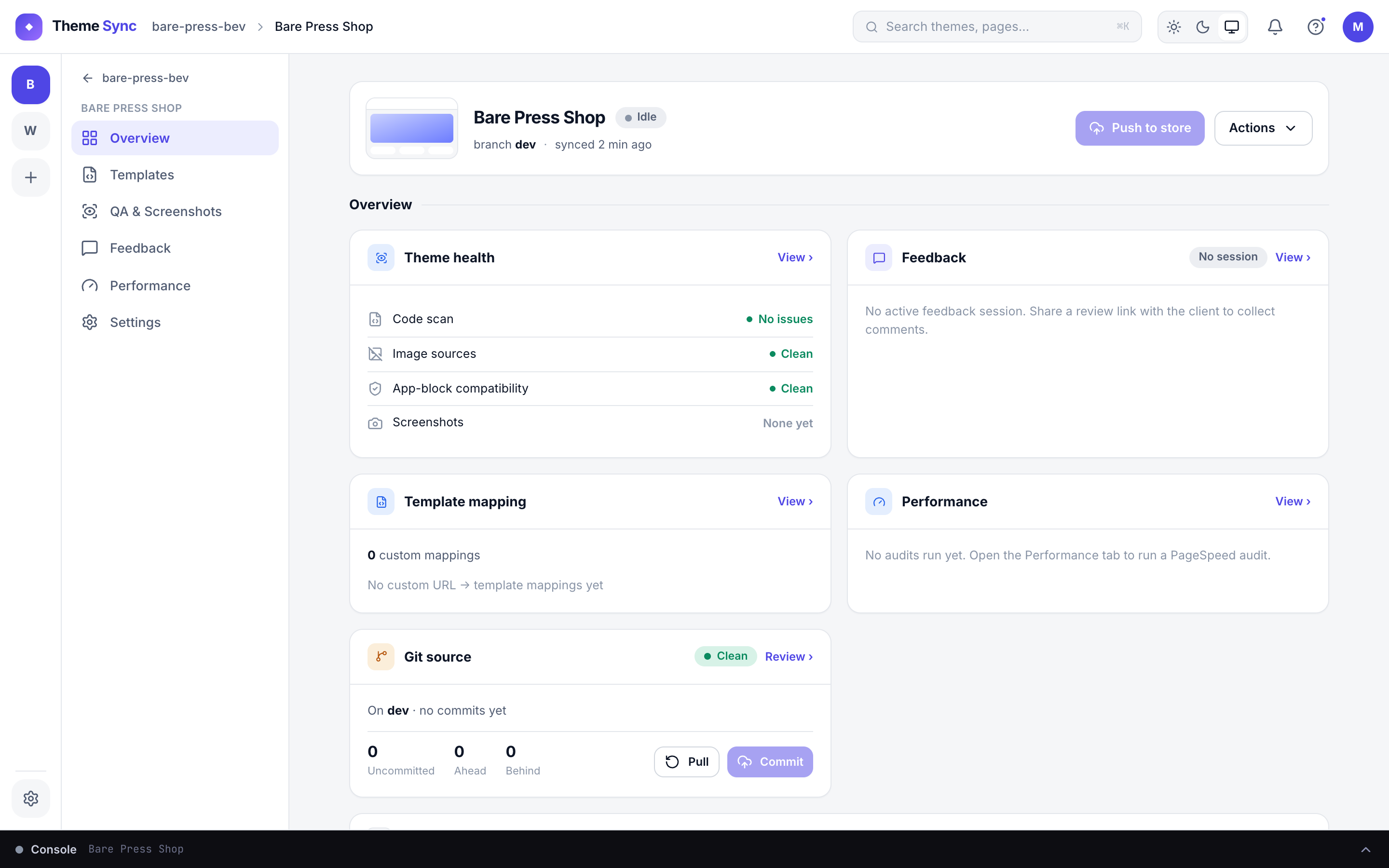
Always-visible narrow column on the far left. Each connected store is an avatar button. Click to switch stores. A warning dot shows if a store needs attention.
When inside a theme: Overview, Templates, QA & Screenshots, Feedback, Performance, Settings. In workspace sections (Team, Billing): account navigation instead.
The main area when no theme is open. Shows the live theme as a hero card, then Draft themes, then Development themes — for the selected store.
A collapsible strip at the bottom. Shows real-time Shopify CLI output for the active dev theme. Persists across navigation.
Workspace name, dark/light mode toggle, and account menu.
/acme-store/my-theme/qa. Share links directly to any view.
Connecting a Store
Click the + button in Rail 1 or Add Theme on the store home to open the new theme flow. You'll choose a platform (Shopify or WooCommerce), enter the store URL, and optionally add credentials and a git repo.
Shopify vs WooCommerce
| Feature | Shopify | WooCommerce |
|---|---|---|
| Preview method | Shopify native theme preview URL | Plugin swaps theme per visitor |
| Dev environment | Full Shopify CLI, live-reload, terminal | Git-push deploys + CDN delivery |
| Production tracking | Auto-sync live/draft themes to git | Not applicable (always push-based) |
| Auth | Browser OAuth or Theme Access password | WP Application Passwords |
| Templates | Liquid files, auto-detected | PHP files, scanned from theme |
| QA screenshots | Via dev server or production URL | Via live site + preview token |
Git Integration
Connect any HTTPS git repo — GitHub, GitLab, Bitbucket, or self-hosted. ThemeSync clones it, checks out your branch, and syncs on a configurable interval.
Supported providers
- GitHub — Personal Access Token (PAT) with
reposcope - GitLab — Project or Personal Access Token
- Bitbucket — App Password with repository read access
- Any HTTPS git host — embed credentials in the URL or use a token
Sync intervals
| Interval | Best for |
|---|---|
| Off | Manual pull only |
| 30 s | Active development — near-instant updates |
| 1 min | Default — good balance |
| 5 min | Staging or low-activity branches |
For production themes, sync runs in the opposite direction: Shopify → git. See Production Tracking.