Free. No email required. Use your browser’s print dialog and choose “Save as PDF”.
Swipe File
Client Review Email Templates
10 copy-paste email templates for every stage of the theme review process — from preview handoff to final sign-off.
By ThemeSync · themesync.dev · 2026
How to Use These Templates
These templates cover the entire client communication lifecycle during theme review. Customize the [bracketed text] for each project. The tone is professional but warm — adjust to match your brand voice.
Templates Included
Preview Ready — Sending the first preview link
Walkthrough Scheduling — Booking the review call
Post-Walkthrough Follow-Up — Recap + next steps
Feedback Reminder — Gentle nudge when deadline approaches
Final Sign-Off Confirmation — Documenting the approval
Go-Live Notification — Theme is published
Pro tip
Save these as canned responses in your email client (Gmail templates, Superhuman snippets, etc.) so your team can fire them off in seconds. Consistency across team members builds client confidence.
1. Preview Ready
Send when the theme preview is ready for client review. Sets expectations and provides all necessary context upfront.
Subject Line
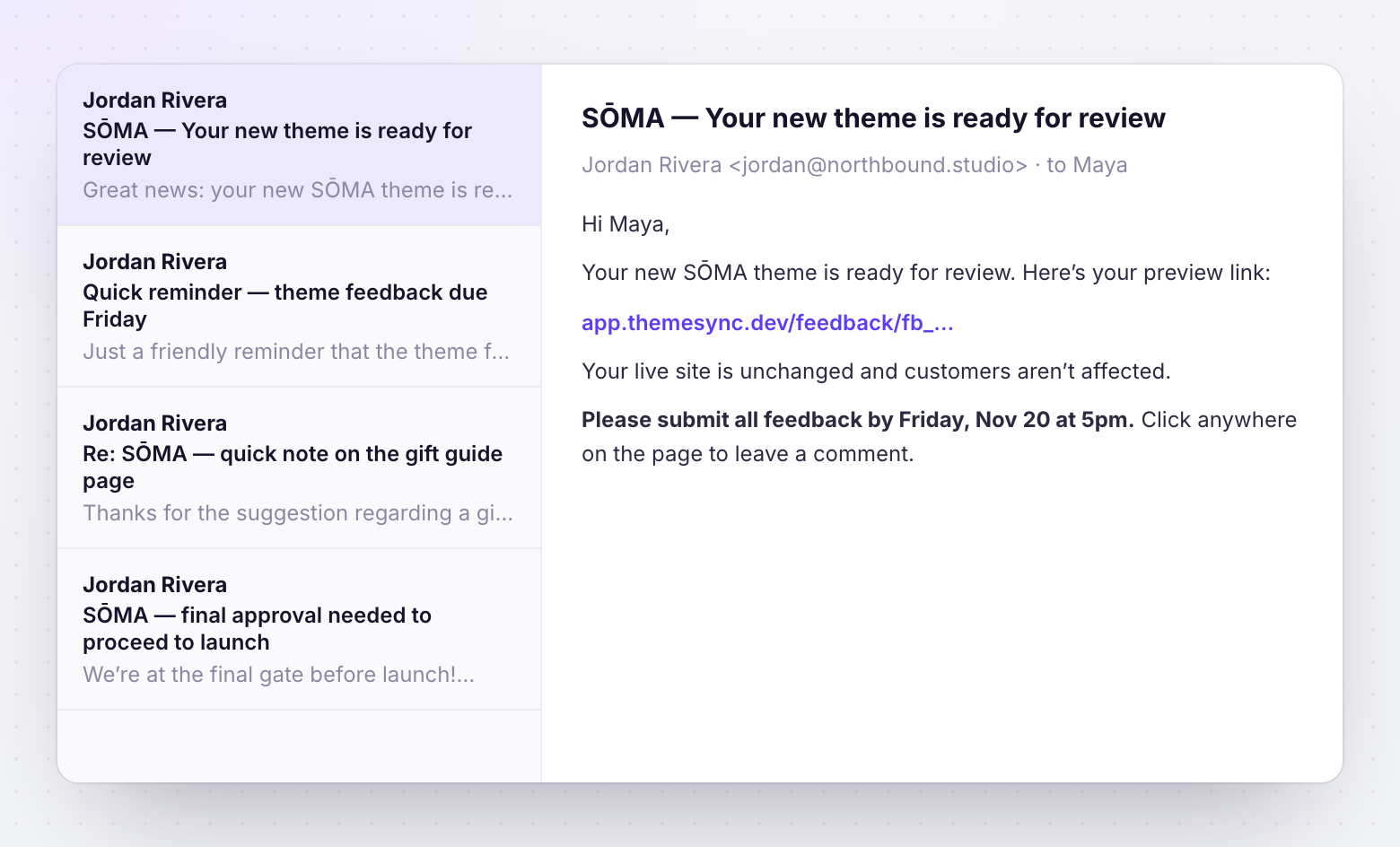
[Project Name] — Your New Theme is Ready for Review
Hi [Client Name],
Great news — your new [store name] theme is ready for your review!
Here's your preview link:
[Preview URL]
You can browse the site just like your customers would — click through the navigation, view products, and explore all pages. The link works on desktop and mobile.
A few things to note:
• This is a preview — your live site is unchanged and your customers aren't affected
• All your real products, collections, and pages are shown with the new design
• [Any known limitations, e.g. "The reviews widget isn't active on preview"]What I'd love your feedback on:
1. Does the overall look and feel match your brand?
2. Is anything confusing from a customer perspective?
3. Is anything missing that you expected to see?
How to give feedback:[If using feedback tool: "Click anywhere on the page and type your comment — like commenting on a Google Doc."][If using email: "Reply to this email with your notes. Please include which page and a screenshot if possible."]Timeline: Please submit all feedback by [date, e.g. "Friday, March 14 at 5pm"]. After that, I'll make the revisions and send you an updated preview for final approval.
Would you like to schedule a 15-minute walkthrough call, or are you comfortable exploring on your own? Either works for me.
Let me know if you have any questions!
[Your name]
Why this works
Sets a clear deadline, tells them exactly what to focus on (so they don't nitpick content typos), and offers a walkthrough without requiring one. The "your customers aren't affected" line prevents the #1 client anxiety.
2. Walkthrough Scheduling
Send when you want to do a live walkthrough rather than just dropping a link.
Subject Line
[Project Name] — Let's Walk Through Your New Theme (15 min)
Hi [Client Name],
Your new theme is looking great and I'd love to walk you through it before you explore on your own. A quick 15-minute call lets me show you the key pages and answer questions in real-time.
I'll share my screen and walk through:
• Homepage and overall navigation
• Product pages and collection views
• [Key custom pages — e.g. "Your new landing page and About page"]
• Mobile experience
After the walkthrough, I'll send you the preview link to explore at your own pace and leave detailed feedback.
Here are a few times that work for me:
• [Option 1 — e.g. "Tuesday 2pm ET"]
• [Option 2]
• [Option 3]
Or feel free to grab a time here: [Calendly/booking link]
Talk soon!
[Your name]
3. Post-Walkthrough Follow-Up
Send immediately after the walkthrough call — captures what was discussed and sets clear next steps.
Subject Line
[Project Name] — Walkthrough Recap + Next Steps
Hi [Client Name],
Thanks for taking the time to review the theme today! Here's a quick recap:
What we reviewed:
• [List pages/templates shown — e.g. "Homepage, product pages, collection grid, About page, landing page"]
• Desktop and mobile views
Known items (not yet final):
• [e.g. "Hero banner image is placeholder — will update with your branded photo"]
• [e.g. "Reviews section will activate after go-live"]Your next step:
Browse the preview at your own pace and submit any feedback by [date/time].
Preview link: [URL][Feedback tool link or instructions]
Focus your feedback on:
1. Brand alignment — does it feel like *your* store?
2. Customer experience — anything confusing for shoppers?
3. Missing elements — anything you expected to see?
After I receive your feedback:
I'll implement changes and send an updated preview within [X business days] for your final approval.
Thanks again — looking forward to your thoughts!
[Your name]
4. Feedback Reminder
Send 1-2 days before the feedback deadline if you haven't heard back. Gentle but clear.
Subject Line
Quick reminder — Theme feedback due [day]
Hi [Client Name],
Just a friendly reminder that the theme feedback deadline is [date at time].
Preview link: [URL]
If you've already started reviewing and need more time, let me know — I can extend by a day or two. I just want to make sure we stay on track for your [target launch date or milestone].
If you've reviewed and everything looks good, a quick "approved!" reply works perfectly.
Thanks!
[Your name]
Timing
Send this 24-48 hours before deadline. If they still don't respond, follow up once more on the deadline day. After that, note in writing that the timeline is shifting due to pending review — this protects you if deadlines slip.
5. Clarification Request
Send when client feedback is too vague to action. Be specific about what you need without making them feel bad.
Subject Line
Re: [Project Name] — Quick clarification on a few items
Hi [Client Name],
Thank you for the feedback! I want to make sure I get these right. Could you help me clarify a few items?
1. "[Paste their vague feedback]"
→ Which page is this on? And which section of the page are you referring to?
[Optional: "Here's a screenshot of that page for reference — is it section A or section B?"]2. "[Another vague item]"
→ Are you viewing this on desktop or mobile? If you can send a screenshot of what you're seeing, that would help me pinpoint the issue.
3. "[Third item if needed]"
→ [Specific question]
Everything else on your list is clear — I'll start on those right away. Just need these clarified so I don't make assumptions.
Thanks!
[Your name]
6. Revision Complete
Send after implementing feedback. Shows exactly what changed so the client can verify quickly.
Subject Line
[Project Name] — Revisions Complete — Ready for Final Review
Hi [Client Name],
I've implemented your feedback. Here's what changed:
Completed:
✓ [Item 1 — e.g. "Updated hero section spacing on mobile"]
✓ [Item 2 — e.g. "Changed product grid to 3 columns on tablet"]
✓ [Item 3 — e.g. "Fixed navigation dropdown alignment in Safari"]
✓ [Item 4]Noted for post-launch:
• [Any deferred items — e.g. "Custom filter feature — scheduling for Phase 2"]
The preview has been updated with all changes:
[Preview URL]
Could you take a final look and confirm everything looks good? If you're happy with it, just reply "Approved" and I'll prepare for launch.
If there's anything else that needs adjustment, please let me know by [date].
Thanks!
[Your name]
7. Scope Boundary
Send when a client request falls outside the agreed scope. Firm but collaborative tone.
Subject Line
Re: [Project Name] — Quick note on [feature/request]
Hi [Client Name],
Thanks for the suggestion regarding [describe the request] — I can see how that would add value.
I want to flag that this falls outside our original scope, which covered [brief description of what was agreed — e.g. "the 10 templates listed in our proposal"]. This would involve [brief description of the work — e.g. "designing and building an additional custom template with new functionality"].
Two options:
1. Add it now: I can include this as a change order — estimated [X hours] at our agreed rate, adding approximately [$X] and [X days] to the timeline.
2. Phase 2: We can add it to a post-launch enhancement list and tackle it after the initial theme is live. This keeps your current launch timeline intact.
Both are totally fine — just want to be transparent about what's involved. Which would you prefer?
[Your name]
Key principle
Never say "no." Always offer options. The scope boundary email should feel like a helpful navigation, not a rejection. Client should feel in control of the decision.
8. Approval Request
Send when you need explicit sign-off before proceeding to launch.
Subject Line
[Project Name] — Final Approval Needed to Proceed to Launch
Hi [Client Name],
We're at the final gate before launch! I need your explicit approval on the following templates to proceed:
[List each template with status, e.g.:]
• Homepage — ✓ Approved
• Product page (standard) — ✓ Approved
• Product page (bundles) — ⏳ Awaiting your approval
• Collection page — ✓ Approved
• About page — ⏳ Awaiting your approval
• Landing page — ✓ Approved
Could you review the remaining pages and confirm approval? A simple "Approved" reply is all I need.
Preview link: [URL]
Once everything is approved, I'll schedule the launch for [target date].
Note: After approval, any further changes will be handled as post-launch updates. This ensures we can launch confidently on schedule.
Thanks!
[Your name]
9. Final Sign-Off Confirmation
Send immediately after receiving approval. Documents the sign-off for your records.
Subject Line
[Project Name] — Theme Approved ✓ Preparing for Launch
Hi [Client Name],
Confirming receipt of your approval on [date]. All templates are now signed off:
✓ Homepage
✓ Product pages (standard + bundles)
✓ Collection pages
✓ About page
✓ Landing page
[Complete list]Next steps:
1. I'll do a final pre-launch check (removing preview code, performance verification)
2. Launch is scheduled for [date and time]
3. I'll send a confirmation once the theme is live
4. I'll monitor the first 24 hours for any issues
Post-launch items noted:
• [Any deferred items]
If you have any last-minute concerns before [launch date], let me know. Otherwise, we're good to go!
[Your name]
10. Go-Live Notification
Send the moment the theme is published. Celebration + next steps.
Subject Line
🚀 [Project Name] — Your New Theme is Live!
Hi [Client Name],
Your new theme is live! 🎉
Take a look: [Live store URL]
Everything is running smoothly. I've verified:
✓ All pages loading correctly
✓ Add-to-cart and checkout functioning
✓ Mobile experience working as expected
✓ No console errors or performance issues
What I'm monitoring (next 24 hours):
• Site performance and load times
• Any customer-facing errors
• Conversion rate stability
What to expect:
• You can continue managing products, pages, and content normally through Shopify admin
• Theme customization (colors, fonts, sections) is available in the theme editor
• If you notice anything unexpected, email me and I'll look into it immediately
Post-launch items we discussed:
• [Deferred feature 1 — with proposed timeline]
• [Deferred feature 2]
Congratulations on the new look! It's been a pleasure working on this.
[Your name]
🛍
Want to eliminate most of these emails?
With ThemeSync, clients pin comments on the preview, browser and device are captured with each one, and approval is recorded per page. Most of these emails become short confirmations.
themesync.dev
In ThemeSync
Where ThemeSync fits
You will still send most of these emails. Three of them get shorter when the feedback lives on the preview instead of in the inbox. Screens are from a demo store.
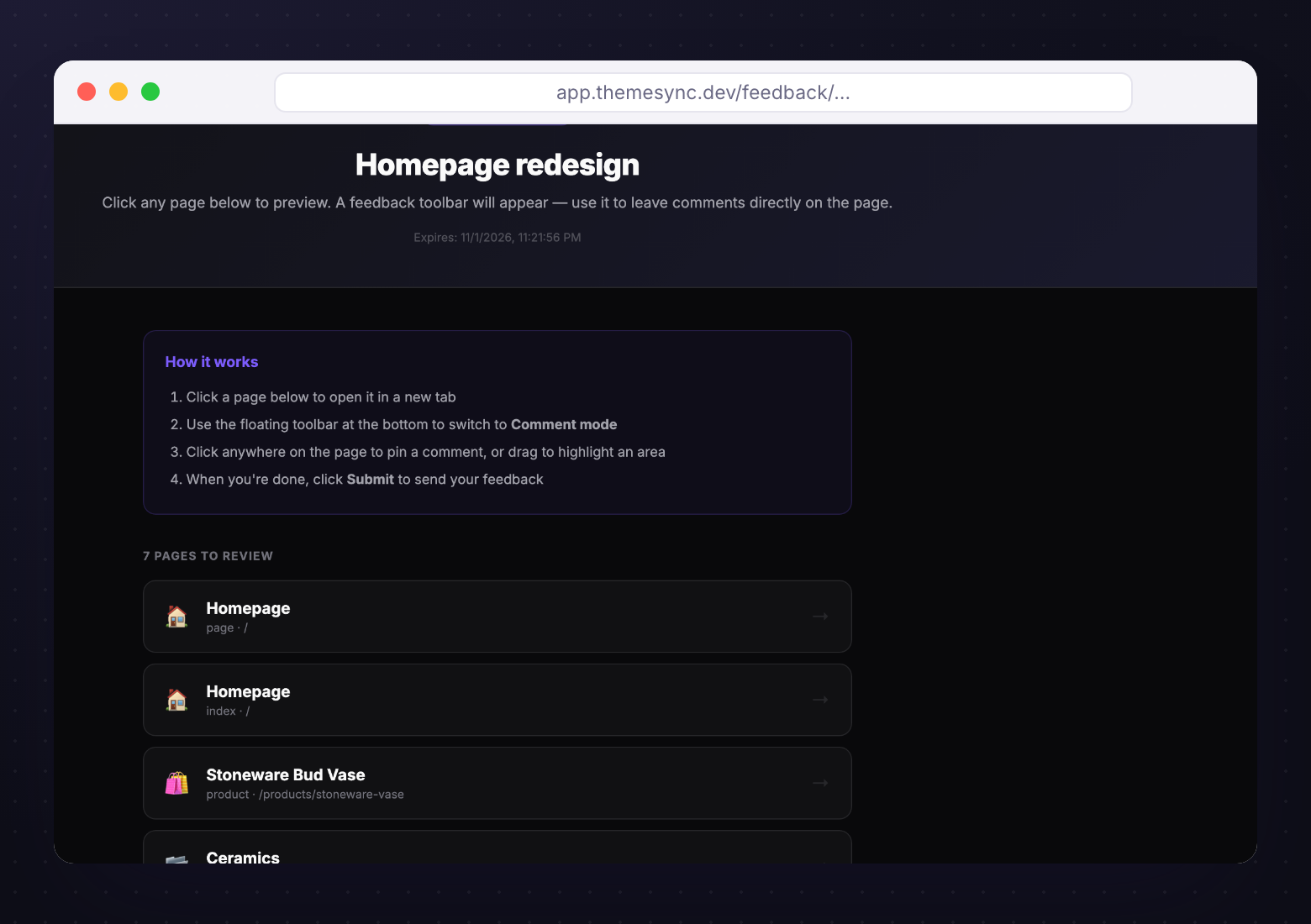
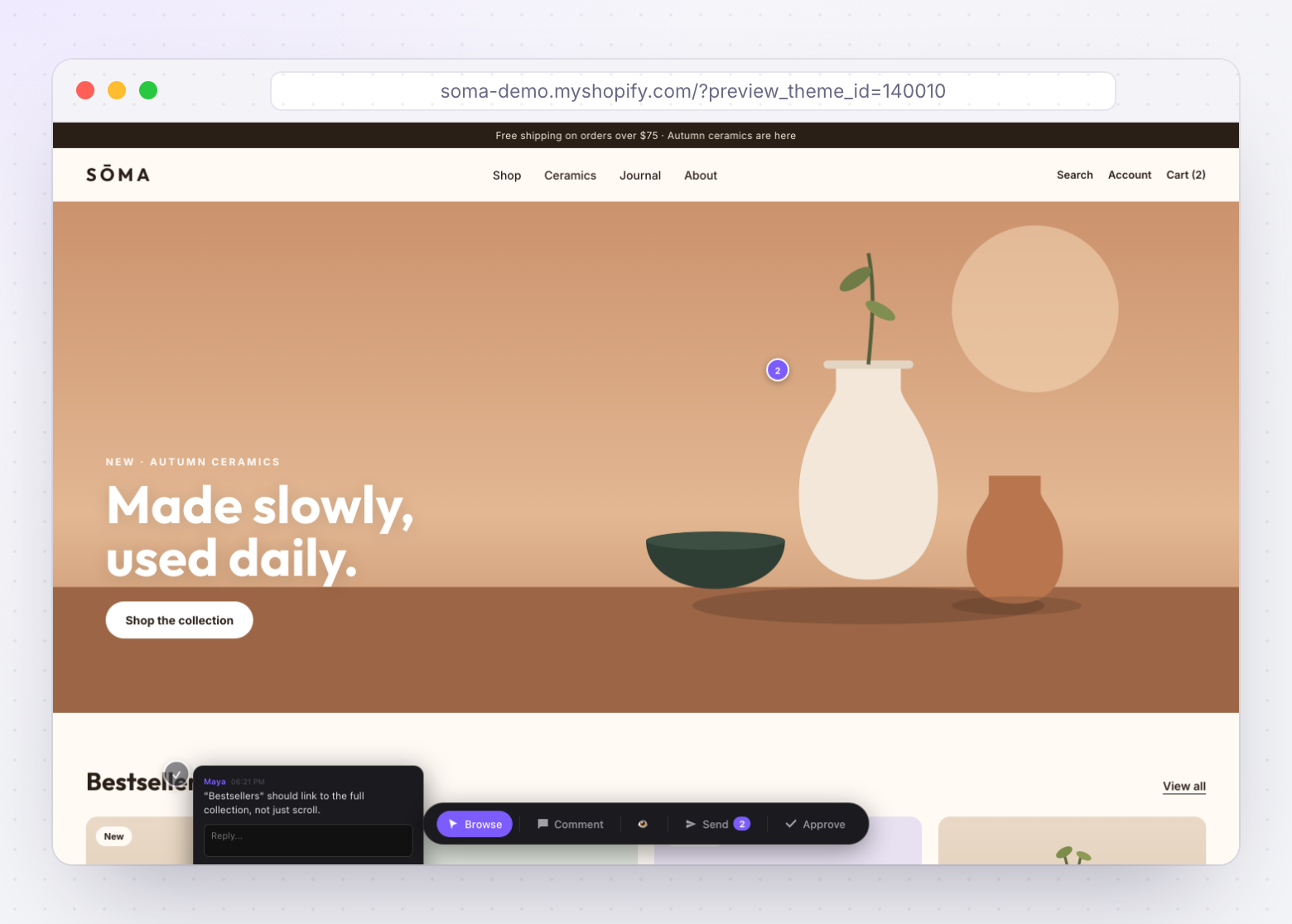
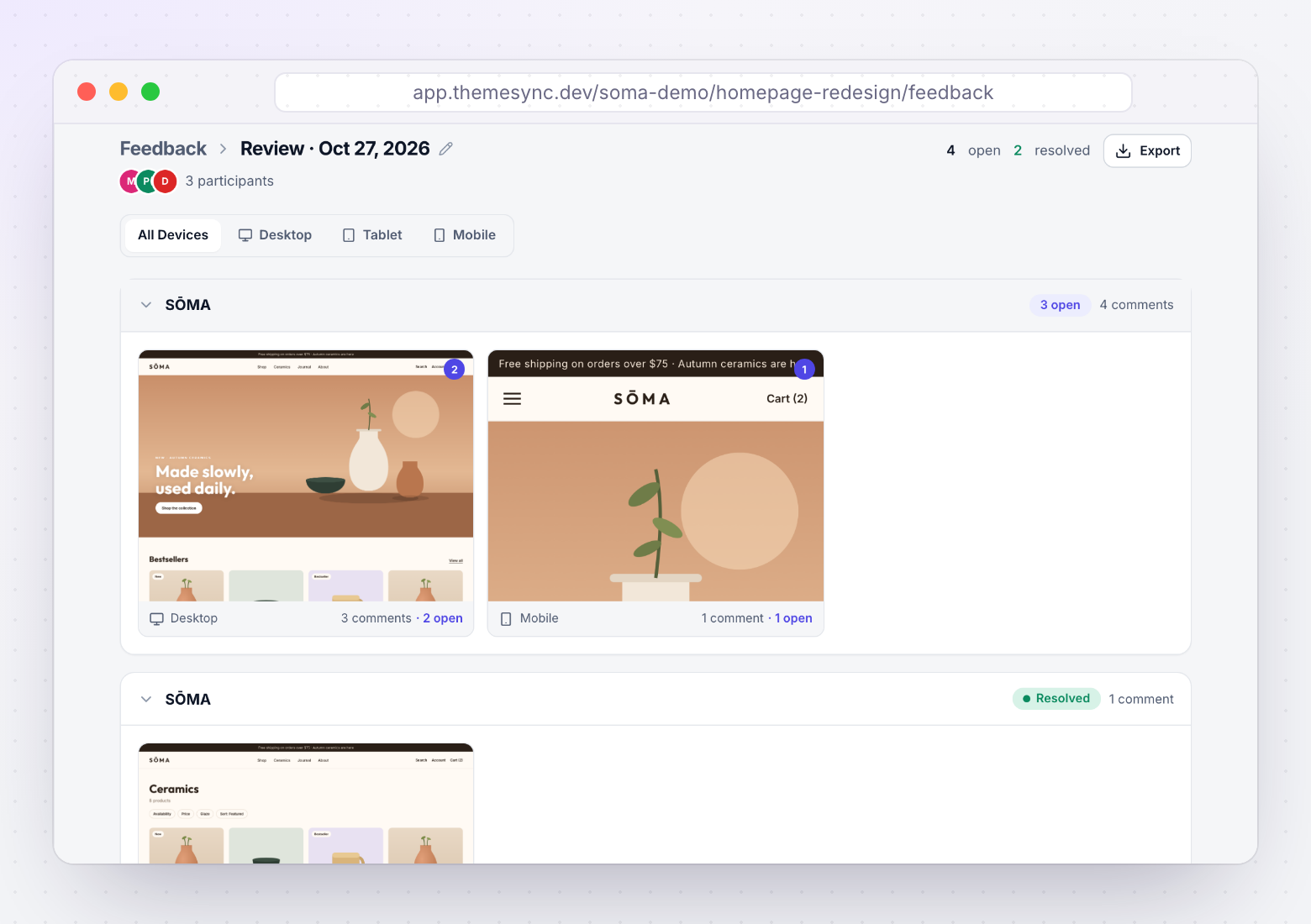
#1 Preview ReadyThe link in the email opens a review page with the pages to check, how to comment and the date the link expires. Clients don’t need an account.#5 Clarification RequestComments are pinned to the element, with browser, device and viewport captured, so fewer of them need a follow-up. Replies stay in the thread.#6 Revision CompleteEvery comment is marked open or resolved, so the revision email can point to the list instead of retyping it.
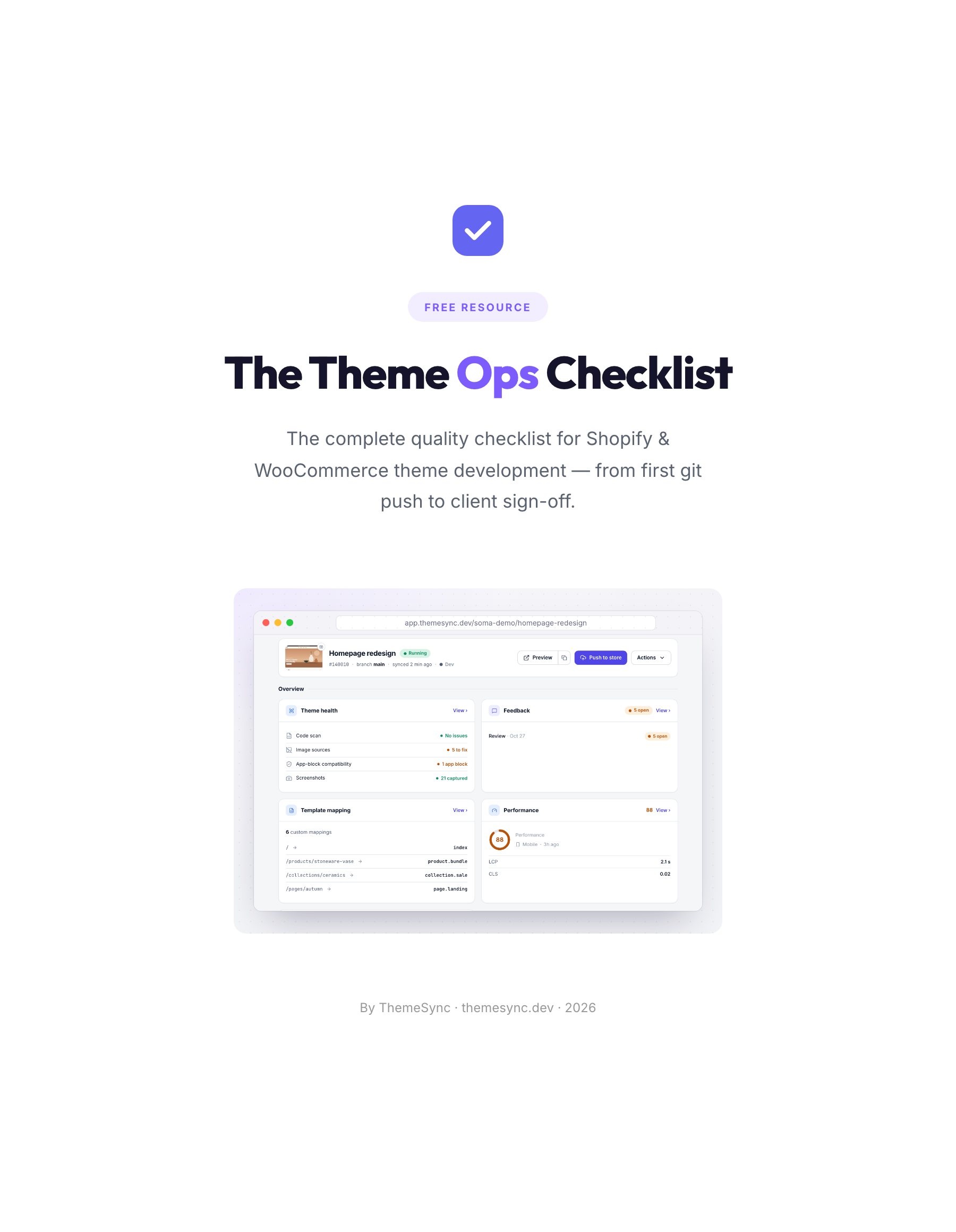 ChecklistThe Theme Ops ChecklistThe 86-point quality checklist for Shopify and WooCommerce theme projects, from the first git push to client sign-off. Print it or save it as a PDF.
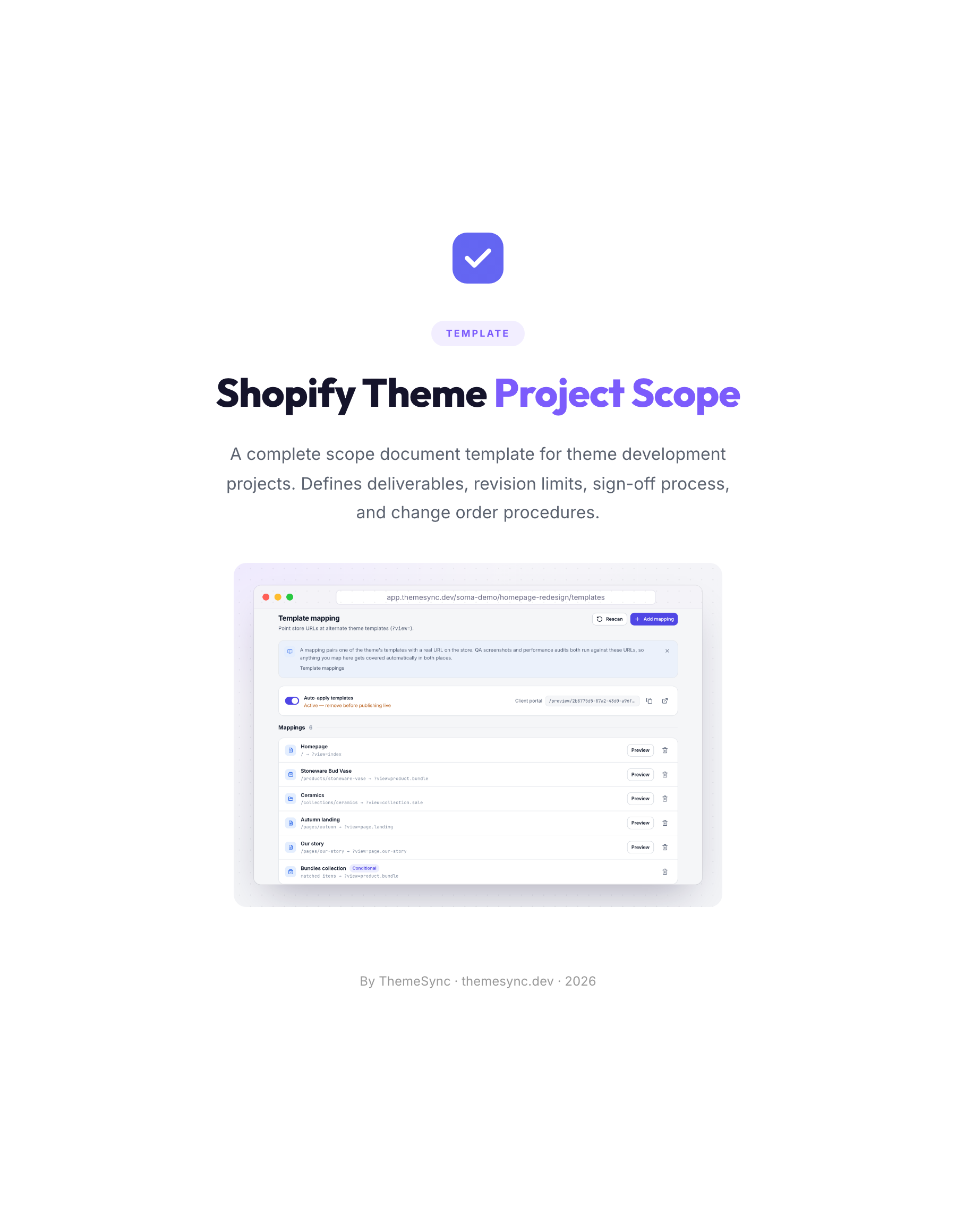 TemplateShopify Theme Project Scope TemplateA scope document for theme projects: deliverables, templates in scope, revision limits, the sign-off process and change orders.
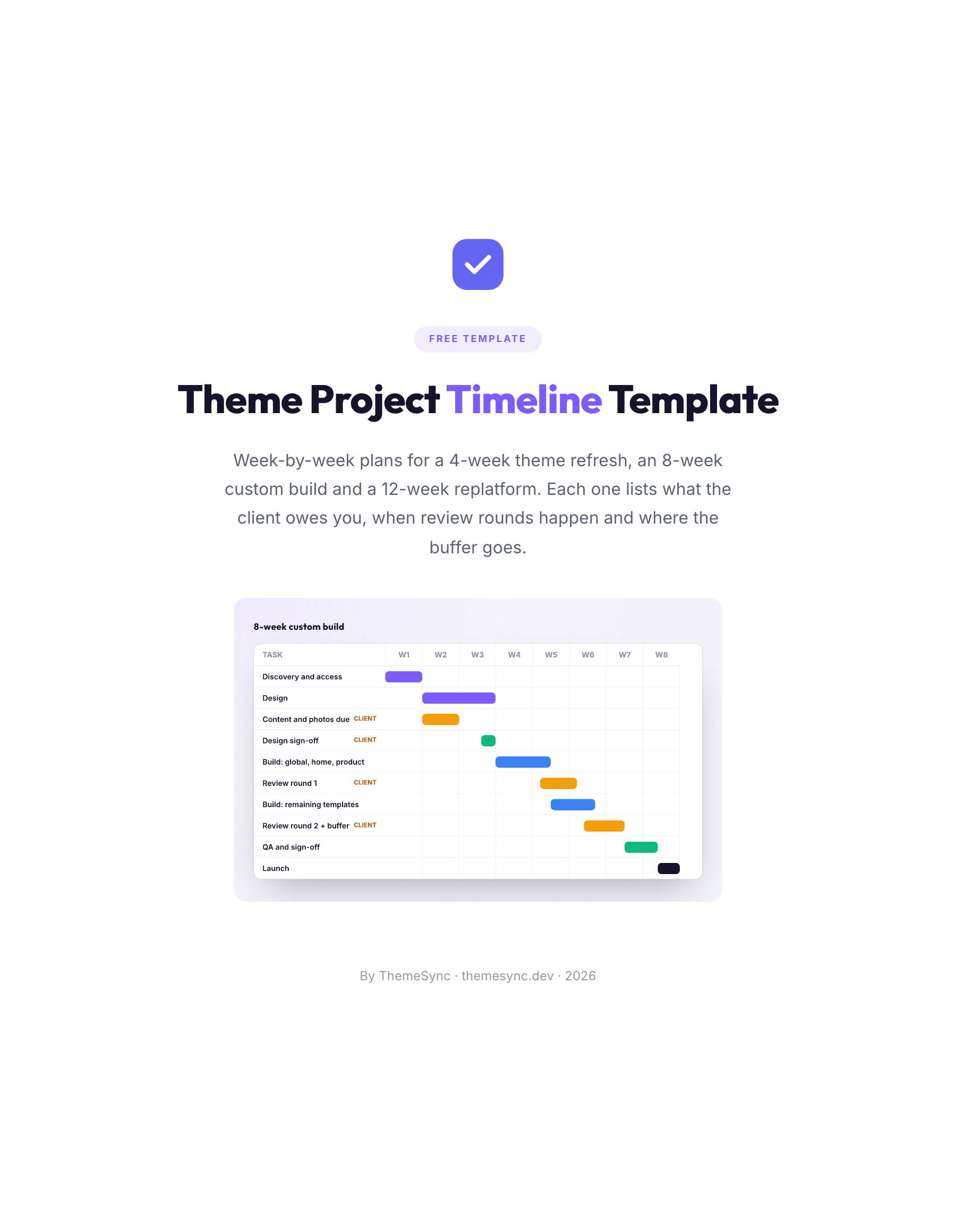 TemplateTheme Project Timeline TemplateWeek-by-week plans for a 4-week refresh, an 8-week custom build and a 12-week replatform, with client inputs, review rounds and buffers.